


Positron: The First Five Minutes (Isabella Velásquez, Posit) | posit::conf(2025)
Isabella Velásquez from the developer relations team at Posit introduces Positron, a comprehensive tool that integrates coding, documentation, and command line functionalities. posit::conf(2025) Subscribe to posit::conf updates: https://posit.co/about/subscription-management/
image: thumbnail.jpg
Transcript#
This transcript was generated automatically and may contain errors.
Hello, everybody. Good morning. My name is Isabella Velásquez. I am on the developer relations team at Posit. I'm really excited to be here with you today. And the topic of my talk is Positron, the First Five Minutes. And probably like many of you, I have spent a lot of time working with data and files and having to manage all sorts of different windows. You know, I need a browser for documentation. I need my editor to edit my code. Sometimes I need to pop up the terminal to do something else. And all of that kind of like code switching tax that we have to pay, you know, puts a big damper in terms of our focus and our flow.
And so what if there was a single place where we could bring that all together, integrate a development environment that allows us to code and view documentation and run command commands if we need, all in a single place. And that is what Positron is. And that kind of single unified interface that really helps you get into the data science flow. And so I'm going to show in five minutes what it might look like as soon as you open up a project in Positron, what those five minutes could look like, and how it's possible thanks to Positron's layout, which we'll get into a little bit deeper afterwards.
Live demo: the first five minutes
So here we are. This is what it looks like. For me, when I first open up Positron, I'm going to navigate and open a new folder by hitting new from Git and pasting the GitHub repository URL that I want to clone. I'm going to hit okay. It's going to open up that folder with all the files that are in that repository. Next I'm going to open up the Python demo.py file. And this is going to contain a script. Let's see what's in it. First up is loading libraries and data. We can see it's some sort of Georgia aquarium species CSV. Next it's going to summarize the number of species by conservation status, create a summary table, and then finally create a plot using a package called plot nine. And that's it so far.
So navigating back up to the top, let's start running some code. I'm going to hit run cell. And then I can see something populated down here in the console. So it actually ran Redmond Mike CSV and then showed me species, which I can see down here. So this is great. I get a quick insight into my data. But honestly, it's a little bit hard to read, right? Can't do anything like sort and filter. So instead I'm going to go over to my viewer pane and open that up. I can see that it's read in my data set called species, and I can open that and see all of the columns within species, some information about them, like their type, and then open that up to see some of the first few values that are contained within each of those columns. So I see some least concern, not endangered, things like that.
Closing that up, let's say I want to see another view. I can hit the view data table icon up there, and that is going to open up a spreadsheet view of my data set. And so if you're coming from RStudio, this might be a little familiar or Excel as well. It's, you know, easy to read. It has cells for each of the different values within that data set. I can do things like hit these three dots and sort ascending. So if I wanted to take a quick look at the critically endangered species, I can see, you know, African penguin is up there and things like that. So just a quick view of my data set.
And another way I can, a thing I can do is open up the summary panel, which also gives me the sparkline view of my data. And I can see, you know, least concern has 96, 62% of the data set, which, you know, it means it's the most common one. And then I also notice it's covered by the cursor a bit, but there's one called not evaluated. So I'm kind of curious, what does this percentage look like if I don't have not evaluated on there because it's not evaluated, right? And so in within Positron, I can create an ephemeral, not permanent filter where I hit that plus sign, select the column. And then the condition I'm going to say, I do not want it to equal to not evaluated, apply that filter. And when I do so that histogram updates and I can scan over now least concern makes up 71% of the data set. And so again, just a quick view to kind of get a grasp of what's contained in here and what steps I might want to take later.
So after that, I can close out of this. Again, it's temporary. It's not going to actually change my data. In addition to running blocks of code within the script, I can hit this play button and it will run everything from the top to the bottom. The last part was the plots, which I can see now in my plot viewer. And so opening that up, I can see another like histogram of the conservation status summary, and then a very helpful part where it says species is threatened. But I noticed like my favorite theme in plot nine is theme minimal. And I kind of want to remember how do I do that again? How do I, are there any arguments within theme minimal that I can use?
And so within Positron, I can open this up, hit and then search the help documentation by running help. And then in this case, I'm going to write P9, which means plot nine, and then the name of the function, theme minimal, hitting enter. Now I see the help documentation within my viewer right there. So I can take a look. I'm like, oh, yeah, interesting. There is a base size. So if I want to play around with that, I can go ahead and, you know, make changes to that. But for now, I'm just going to go ahead and add that theme. I made a typo. Theme minimal. Rerun this here. And then opening up my plot viewer, I notice like, oh, I actually have two versions of plot. I can go back and forth and see what I have created. Ta-da!
Positron's interface explained
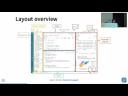
So that was really fast. We watched an incredibly fast workflow, and I did have the advantage of actually knowing what was contained in the script and everything like that. But really it was just to get a sense of, like, when you open up that project, what might your workflow look like to start exploring your data? And, you know, something that you may be wondering is how can we do all of that really quickly? And I would say one of the big components that enables this to be possible is the Positron interface, which is meant to be a very flexible environment for your data science needs. And so you can really tailor your workflow or, I'm sorry, your workspace for your workflow according to, like, your needs.
one of the big components that enables this to be possible is the Positron interface, which is meant to be a very flexible environment for your data science needs.
And then these are kind of the core elements of the Positron interface that each have, like, their own function in terms of running data, exploring data, and so on. So on the left-hand side we have the activity bar, which we barely even mentioned. And so this is going to be the way that you can quickly switch across different views in Positron from the Explorer, the Search, the Source, Control, and Extensions. And if you want to run Positron Assistant, which is an AI client within Positron, it's available there as well.
The primary sidebar to the right of the activity bar is going to show you the different views that you have chosen within the activity bar. And so when you choose, you know, the system, the system will show up there, and by default it's the File Explorer. The editor, as you can imagine, is where you would edit and you can run your code. And the panel is below the editor, and it contains the console, which is a fully integrated console where you can run lines of code and see the results, messages, and things like that from your output.
The secondary sidebar contains several things. It's on the right by default. You can switch between the Session pane, where you can explore the variables that you have defined and the plots that you have created, the Connections pane, so if you're connecting to databases, that's available as well. There's also the Help pane, which we noticed earlier, and then also the Viewer pane as well.
I also wanted to mention there are a couple of other things that might not be super obvious, but are very important, and so probably worth highlighting. So the first one is the title bar at the very, very top, and this shows the active file and the project, along with any kind of window controls. A little bit covered up by the tooltip there are small icons where you can change the layout really quickly of Positron and also get back to this default layout, if that is your preference. Below it, the top bar provides global project tools, such as file search, so clicking there, you can search within the files. You can switch between projects, and then also here, you can also see the interpreters, so choosing between R and Python and different versions of R and Python, clicking there, you can go ahead and switch between the different interpreters that you have available. Finally, the status bar at the very bottom displays details like your Quarto version, your Git status, and so on.
Key panes in depth
So just to kind of dive a little bit deeper in the specific things that we just saw, I just wanted to mention the welcome page. If you watched Jonathan McPherson's keynote yesterday, one thing that I had always used and never really thought of is the fact that when you open up Positron, kind of the world is your oyster. Jonathan mentioned that sometimes people open up RStudio because they want to add two numbers together, and similarly with Positron, you have something similar. The layout is all right there, the activity bar, the console, if you want to use Python to add numbers, and then as mentioned, there are three big ways of creating or opening up new folders. You can open up a new folder, create a new folder, or create a new folder from a GitHub repository. There's a handy way of looking at all of your recent files, and another thing I wanted to mention is to the right of that are some really handy resources in case you are getting accustomed to Positron and migrating from another tool. So in particular, there are two walkthroughs, migrating from RStudio, migrating from VS Code, that you can click through and really help get yourself accustomed to this new IDE, as well as links to the Positron documentation and other resources.
So, to this left-hand side, we talked about the primary sidebar. Specifically, the file explorer is probably one of the most used views in the activity bar, and so it's essentially a file explorer for your project. When you click the explorer icon, you see a tree of all of the files that are contained within your current workspace, and here you can browse your files, create new files, delete your files, rename your files, even move your files, and then in addition, it also shows the status of your files, so if you change something, it will either change color or add an icon to indicate that there's something different about that particular file.
So, the editor is where you write and save your code, and it's a full-fledged text editor with all of those things that you need in order to write good R or Python code. There's syntax highlighting where different colors will show up depending on, you know, if you're using a function or using different kind of arguments or things like that. As you type, the editor will also provide some suggestions, and so you can hit tab and then complete, you know, a particular line of code without having to write it fully out, which is what I did with the minimal. You can run single lines of code by using the command enter or command return on Mac, and so then running single lines of code will populate it in the console. So, finally, like if you notice in the script that I had, we are able to create chunks so that you can collapse chunks so it's a bit easier to read through your file.
Next up is the console, and so this is going to be a way that you can run code, again, either line by line or a block of code that you paste in here, run enter to execute it immediately. When you run code from the editor, it's going to show any kind of output or warning or messages, and then it also will provide errors, so if you run into an issue with your code, it will populate here, and you can also use the console to view, like, any objects that you've created. In this case, it's showing the species object that we created, and, you know, coming from RStudio, you may be aware the console is temporary. It's not going to save any of the code that you've run, and so be sure to write your code in the editor if it's something that you want to keep.
The viewer pane is a quick way of taking a look at any data sets that you've imported. In this case, we have species, which was the part of the original CSV import, and then conservation status, which is that summary table that we created later on. Opening this up, again, you get a quick view of the columns, what's contained within them, the data types of those columns, and then hitting that small grid icon opens up the Data Explorer.
The primary display of the Data Explorer is this data grid, which is a spreadsheet like cell view. Each column header has the name of the column. Below that, the data type, which depends on the back end of however you imported the data, so the language you ran or DuckDB or things like that. At the top of each control, there's a way to sort your columns as well. You can rearrange them by dragging and dropping. If you notice, there's also the row index, which will be zero if you're working in Python, or start at zero if you're working in Python, one if you're working in R. And of course, as shown, you could sort and arrange your data set by hitting that small three dots at the top.
Next up is the summary panel. Again, it displays a vertical scrolling list of all the column names, and then also displays a small sparkline graph of the data contained within those columns, and then also a percentage. It also provides a small far graph of the missing values. So in this case, fun fact, we can see there are 10% of those are missing. If you hover over, you get tool tips with some of the summary and missing data indicators, and then you can actually hover over the small A to the left and get another view of the data type of that particular column.
The filter bar is that ephemeral filter that I mentioned. You can add, show, and hide filters, and then select your column and take a quick look at your data set to see, you know, how and if things change if you were to run that filter directly on your data set.
And the plots viewer. So here on the lower right, a way to view of your plots, and then, again, in the five minutes, unfortunately I didn't get the time to go through everything that's in here, but there is a lot. So in addition to the plot history where you can go back and forth and check out different plots and decide which ones are your favorite, you can also use the arrows to go back and forth. You can save plots directly from here, so hitting that floppy disk will pop up a dialog where you can specify the size and save your plot exactly the way that you want it to look like. You can also hit copy and copy your plot directly to your clipboard if you want to paste it, you know, in an email or anything like that. You can change the dimensions and see how your plot looks, you know, in different sizes and in different dimensions. It also shows you how this plot was generated, in this case, myplotlib, but, again, you can change that just to see what it would look like in different ways. And, oh, another thing to mention is if you hit that circle, it actually shows you your plot in dark mode. So if you want to see, like, different versions of your plot, you can do that all within the plot viewer.
All right, last up is that documentation pane. So if you're coming from R and RStudio, hitting question mark and then the name of the function opens up a similar kind of help documentation and then for Python users in Positron, let me back up, R users in Positron have the same feature and Python users in Positron also have an option as well. And the benefits of this is, of course, you have your documentation directly within your IDE. You can actually go page back and forth within the documentation without having to open it up in a browser or anything like that.
What's next: the next five minutes
And that was just the first five minutes. I think I spent more time talking about it than actually doing it. But what can we do in the next five minutes? So I mentioned there's an activity bar that we didn't even touch this time around. You can imagine you can push changes to Git. So because I had made a change within the file, there's a one button or one icon there. So it's letting me know, hey, you've made a change. Do you want to push that up to Git because you haven't yet? And so doing that shows, like, a pane, a very nifty pane of all the changes that you've made within your GitHub repository and then an easy way to commit any changes that you've made and push them up.
Debug. So within here, if you run into issues with your script, you can run your debugger. This is the extensions. So one of the great benefits of VS Code-based IDEs like Positron is the ability to use the very, very extensive extension list that there exists for VS Code. So things like themes are things that make your code, you know, easier to read and things like that. And so hitting that opens up the marketplace where you can search for the different kinds of extensions that you need. Configure tests. So if you need tests for your scripts in order to make sure that things run the way that are expected, you would do that here as well.
The arrow icon allows you to publish directly from Positron to PositConnect or PositConnect Cloud. And so these are different platforms for publishing all sorts of data science content. So if you have a Quarto document, a Shiny document, a Streamlit app or anything like that, you hit that, configure your settings, and then you're able to publish and then also update anything that you have published in the past directly within the IDE.
And finally, Positron Assistant. If you were here yesterday, Ryan Johnson gave a talk on Positron Assistant and Databot. And, you know, just with that, you could definitely spend at least 10 minutes working with Positron Assistant and working with it to view your code, learn about your code, explore your code, and things like that. So really there's so much that you can do. And I was just talking about this one activity bar, the whole, you know, ecosystem of everything, the interface of Positron that's available, it's really quite impressive.
I was just talking about this one activity bar, the whole, you know, ecosystem of everything, the interface of Positron that's available, it's really quite impressive.
And for you, you can try it yourself. If you just walk out here, take a few steps, we have laptops that are configured with Positron and Positron Assistant that you can try out. And, you know, the Positron team is there as well to answer any questions that you may have specifically about the layout or anything else. So I highly encourage you to try it. I did also want to give a shout out to my colleagues, Sharon Wing and Sam Edwards who developed this demo that I used. So thank you so much. It was a lot of fun to work with it.
Last thing I want to mention is you might be thinking, wait a second, that wasn't the actual first five minutes, right? And you are absolutely correct. There are quite a few things that happened before this that I did not mention. You know, so, for example, downloading and installing Positron and downloading and installing R and Python. And I have a lot of key bindings and extensions that I've installed and downloaded because, you know, I've been working with Positron for a little while. And so absolutely correct. And if you want to learn more about this, you can come watch my demo, which I'm giving next Wednesday. It's online. And I would love to see you there if you want to learn more about these steps as well. And with that, thank you so much for watching. And we're happy to take any questions.
Q&A
The question is will Quarto inline output be supported in Positron eventually? Short answer, yes. Long answer, this is, yeah, one of our most asked for features. Basically due to the architecture of the way that Positron, the Quarto extension, the visual editor, everything is set up. It's a really tough change. But we do know, you know, thinking about Jonathan's keynote talk yesterday, we want to be listening to our users. It won't be planned for this year, probably. But it will be coming. Because we know that this is kind of a blocker for some people who want to use Positron. I will highlight, too, that we have support for notebooks, which, you know, have inline output out of the box, basically. But, yeah, right now that's what you want if you want to be creating documents with inline output. Or just like we're still fine with you going back to RStudio if that's what you need to use that for.
So, Positron has a sort of different notion of projects where we call them workspaces. And you open up a folder, basically, you open up the folder as a workspace, and then your file layout, you know, basically, you can have workspace specific settings and everything. I believe there's nothing, like, necessarily special about that Rproj file in Positron. So, you can open up a folder as an Rproj, basically. We do have documentation about this, too, if you're more interested than my high level answer. I'm a little bit more on the Python side, so I don't know exactly, like, all of the technical details about that. But, like, short answer is yes.
The question was, is VS Code going to be continued to be in Workbench alongside Positron? The answer is yes. I think there's a lot that you can do in VS Code that's very good to do in VS Code. I still develop a lot of TypeScript in VS Code, because it's just, like, there are more extensions and things around that, personally. So, yeah, I mean, we know that there's a bunch of different uses for the different IDEs, and, yeah, we'll continue to offer VS Code in Workbench.
Roadmap for other languages being first class supported in Positron. I will call out that you can edit, you know, SQL, you can see syntax highlighting and stuff like that right now, but it's not like we have a SQL console necessarily right now. I do think we're interested in more first class SQL support. I can't commit to any timelines, sadly, because we just don't know exactly what the timelines look like. SQL support, Julia support are both, like, very highly upvoted, and it's just kind of a question of, like, what our priorities are, what our capacity is as a team, you know, what kind of support we get from the community and, like, interest. So I can't commit to a roadmap. I also can't say that it'll be this year in 2025, but, yeah.
The question was, do we plan to support any older versions of R? We support R 4.2 and above, which is at this point five versions of R, which is the same version policy as the tidyverse, and like Positron being a newer IDE, had the ability to say we're going to be using a little bit newer version of R, which does come with a number of improvements, like on, like, Windows you get UTF-8 natively out of the box, which is, like, a huge benefit and simplifies a whole bunch of things. So we will not, we have no plans to extend that further back. Yeah.
Another question. You asked what my favorite feature of Positron is. I'm very biased, but I really like remote SSH. This is something you can do in VS Code, but we kind of doctored it up and made it better, in my opinion, for Positron, where you can, if you have SSH access to a remote machine, you can connect with the little bottom left button, connect to the host, the UI still lives on your laptop, but basically everything else is on your remote machine. So if it's a more powerful machine, you get access to the file system, the data, the, your R session or whatever is on that remote machine, and you can take advantage of the compute and stuff. I really like it. And as well, you can disconnect and reconnect as your code is running, which is a big feature that I don't think VS Code has. So that's what I like.
Can a remote SSH, or sorry, a Workbench EC2 instance be used as that SSH host? I believe the answer is yes. I think they qualify for all of our technical requirements. I haven't personally tried it. And I also don't want to give advice that would like mess up your instance, but if you pay for Workbench, you know, you have support, so you can always open a ticket.


