


Isabel Zimmerman - End-to-end data science with the Positron IDE | PyData NYC 2024
www.pydata.org The process of data science is inherently iterative, requiring constant inspection and visualization of data. Positron is a new, next generation integrated development environment (IDE) built to facilitate exploratory data analysis, reproducible authoring, and publishing data artifacts. This talk will discuss the motivation behind creating Positron and demonstrate the features that support these iterative data science workflows. PyData is an educational program of NumFOCUS, a 501(c)3 non-profit organization in the United States. PyData provides a forum for the international community of users and developers of data analysis tools to share ideas and learn from each other. The global PyData network promotes discussion of best practices, new approaches, and emerging technologies for data management, processing, analytics, and visualization. PyData communities approach data science using many languages, including (but not limited to) Python, Julia, and R. PyData conferences aim to be accessible and community-driven, with novice to advanced level presentations. PyData tutorials and talks bring attendees the latest project features along with cutting-edge use cases. 00:00 Welcome! 00:10 Help us add time stamps or captions to this video! See the description for details. Want to help add timestamps to our YouTube videos to help with discoverability? Find out more here: https://github.com/numfocus/YouTubeVideoTimestamps

image: thumbnail.jpg
Transcript#
This transcript was generated automatically and may contain errors.
I am Isabel Zimmerman. I am a software engineer on the Positron team. You're probably in this room because you're like, what is this Positron IDE? That's the name of the talk.
Out of curiosity, who has heard of the Positron IDE before? Oh, that is so much more than I was expecting. Welcome! And if you don't know anything about the Positron IDE, this is the best room to be in.
I work on the Python experience. That means I write Python code. I think about things like, how does the autocomplete look the best for data scientists in Positron? Or even things like, what UI elements will data scientists need?
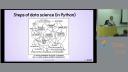
And this is really important to me because I started out learning data science in a classroom. In this little class, it was called Intro to Data Science. I had a fantastic professor, Dr. Sanchez, and he taught me about this cycle. And this cycle is tidying data, you import it, you transform it, you visualize it, you model it, and you communicate it with others. Many people who are data scientists, this seems pretty familiar.
Full warning, I was writing all of R code. The first day in this class felt super magical. I was in this RStudio IDE, and it's got a lot of different UI elements to really help you have a super seamless experience. I did not know anything about programming at the time. I made my very first plot that was not in Excel in RStudio. And I was able to do this all the first day. There was in IDE help. It just felt like I was very supported all the way along this data science experience.
And I went on to do more schooling, more learning, more classes, and RStudio was an IDE that occurred with me. And I finished my degrees, and I took a job doing not R work, and I realized that this data science life cycle is the same. It doesn't matter what language you're writing it in. Some of you might have the same experience of learning a different language and then transferring it into what you do now. And a lot of those fundamentals stayed the same, but something that did change were the tools that I was using.
I was no longer RStudio IDE. I used Jupyter Notebook, just that classic notebook experience, and I ended up in JupyterLab, and I ended up in Visual Studio. And it felt good for a lot of reasons. I was using a lot of Jupyter Notebooks, and that's what these are made for. But it felt like something was missing.
Some tasks sort of felt like I was stubbing my toe on the corner of a table when I was navigating through this IDE. And, of course, stubbing your toe is not going to ruin your day. Until you're stubbing your toe eight hours a day, five days a week. I really wasn't able to find an IDE that maximized this data science experience. I do a lot of iterative work. What about tracking all the things that I run?
Until you're stubbing your toe eight hours a day, five days a week. I really wasn't able to find an IDE that maximized this data science experience.
So I guess a few years later, now I have hobbled my bruised feet over to working on the Positron IDE. And I'm hoping I can convince you all that this will give you a little bit of joy and maybe minimize some of the pain you feel with other IDEs.
What is Positron?
Okay, so here's the question. What is Positron, and how does it support data scientists?
It's important to think about not only my origin story, that's not really important here, but maybe the origin story of this IDE overall. So it is a multi-language IDE for data science. Positron is a fork of the open source VS Code, and it is customized for data science. This is a really classic move that other IDEs have taken. If you've heard of Cursor, it's an IDE that's been forked and then used, like, really specialized for AI. It's really great because you're able to use OpenVSX extensions. It's pretty familiar for people if you've used VS Code before.
It enables multi-lingual data science. You get to build off of this community. But perhaps the most important thing for what we're building is that it is a strong IDE base that we are able to customize to help do a little bit of interior decorating for data scientists. And that's because data science is a very iterative process. You know, you want to do your quick experimentation, your writing code, your refitting models. You want something that's going to support this.
And it's important that this is made by Posit as well. If you're not familiar with this name, you might know us by our prior name, RStudio. That maybe was a bit of a leading story earlier. But what that means, that we have built RStudio, is that we have decades of knowledge of specialized IDEs specifically for data science tasks, which we know don't change depending on the language. So it made sense for us to, you know, branch out to this multi-language IDE. We've been building Python tools for a long time. We've built tools that support Julia and other data science languages.
A tour of the Positron interface
So it felt right to share, you know, the joys of interior decorating and changes that we've made in RStudio with the wider community. So this is your first look at Positron. And it's kind of a lot in this screenshot, I'm not going to lie. So we'll break it down step by step.
If you look at the very top, this is kind of your where and what are you working on. So you can see here, there's like your little search pane. Zoom in, I don't know if you can actually zoom in, but there's a little search pane up top. There's the way that you can tell what interpreter you're using. You can see what directory you're in. The classic, you know, who, what, when, where, why, how of an IDE.
And of course, there's also a place for your source code. So this is another classic, you need to be able to write code somewhere. This is kind of the pain of the IDE that does that. And right below it is a console. And this is your sandbox for your code. It's interactive, it's fully featured. We'll dive into it a little bit more later, but you can kind of think of it as a playground for code.
And then the entire right-hand side, you can, of course, resize these if this looks like it's taking up too much space or whatever, is context about your code. So this is telling you more about the variables you've created, displaying the plots you've designed. It's going to render the documents you've printed. And a lot more.
So Posit really believes in, you know, the magic, the beauty, the reproducibility, all the reasons that people believe in and want to support code-first data science. You know, we think this is the right choice for science is to have code that's portable, that's reproducible. But sometimes, sometimes a little bit of UI elements helps to make that writing code experience more helpful to people who are writing the code.
Managing Python environments
But maybe the elephant in the Python community room is that the beginning of data science looks sort of like this if you're writing Python code. And this is a XKCD product that is really highlighting all of the many, many beautiful and somewhat successful ways you can install Python onto your machine. And if you think this is confusing, wait until you get into creating a virtual environment, all of the tens of tools to do that, and activating it, and making sure it's active in the terminal you're using, and making sure that's actually the Python script. It's a mess. It's a mess. It can be confusing. And that was kind of the first place that we thought, you know, maybe a little bit of UI can help people here.
So in that who, what, when, where, how, why, all your W and H questions bar at the top, there is a interpreter selector. So you can see on your screen, I'm going to keep pointing to this, your screen, that at the very top, Positron will sniff out kind of all the different ways that you have Python installed, all the different environments that are available. There's Conda, there's Mamba, there's PyEnv, there's Venn, there's VirtualEnv, there's Poetry as well. And it can be hard to wrangle these and make sure that they're all activated in the same way.
In Positron, you can kind of go through this UI experience and you can tell which one is active in your IDE by the little green button. It's also the one that's on the top. If you want to turn it off, you can click the power button. You can refresh your kernel right there, turn it back on. And this will activate your Python, whichever one you selected, in the terminal, in your console, in all your Jupyter notebooks. You're also able to switch it, of course. But to have that unified experience where you know what Python is running at any point in time, which is somehow a harder question than you would like to admit.
The interactive console
So once you have Python chosen, you want to use this interactive console to maybe experiment with your code a little bit. And this is a live IPython console. It's a good place to test out quickly and see results. It is sort of a playground. It's nice as a sort of in-between between a Jupyter notebook and writing a Python script. So if you want to just quickly run pieces of a Python script, you can do Command-Enter in your editor, and it will automatically send this to the console, which has been super fun for me.
I also manage and maintain some Python libraries. And so being able to just quickly run through that code, making sure it still works. Before, I really copy and pasted a lot of things into a Jupyter notebook and then brought it back for development purposes. So having this console at my fingertips has really been a life changer for me. So I use Positron as a Python package maintainer. I use Positron for building demos. I use Positron to build Positron. There's some Inception-level things happening there.
Importing data and database connections
So we'll start by importing our data. And some questions that people might be asking at this import stage is, how am I getting data into this project? And it's probably starting at a database. So if you have connected to a database by running some Python code that creates a cursor object in SQLAlchemy, if you're familiar with that, or some sort of database connection, there is a pane on that right-hand side, and this will show up. So you can see here it will get all of the tables for your database, and it will show you all of the rows and the types of the columns in the database table as well.
And this is really helpful. If you click on that little eye, the data in that database table will automatically populate. You don't have to run any code. It's one of those places where code for data science is useful for the reproducibility part, but sometimes there's some rough edges. You just want to take a quick look at something. And this is a nice place to kind of ease that transition.
Not only can you view your database information here, you can also manage your connection. So you can refresh a connection. You can disconnect. If you want to disconnect from your database, it can also reconnect. It will store the knowledge of how to manage this database connection. And it's currently supported for SQLite. If you have other ideas, we would love to hear from you on GitHub.
Tidying data with the data explorer
So we have data. We will now tidy it. This is a hard, very overwhelming question. And it kind of starts with, what does my data even look like to start? You know, what are the columns? What are some summary statistics? Can I quickly open all of these files of data that I have on my computer? And the answer is yes.
So this is built into Positron. This is our data explorer. If you click on a Pollers or Pandas data frame, or if you open it up from the Variables pane, which you'll see shortly, you get this beautifully full-featured data explorer. It has things like summary statistics. It has little sparklines for your data. You can sort of like debug your data by quickly scrolling through it. And this is a data explorer that's highly performant. We've had tests with tens of millions of rows and millions of columns. And it acts pretty much the same as if you had like 30 rows.
And something that's new, and I think just the most beautiful thing I've ever seen, is you can also click on CSV or Parquet files, and they automatically open in your data explorer. You don't need to be running Python, you don't need to be running R, you don't need to be running Julia, because this is using DuckDB with WebAssembly code to automatically load it, so it's very fast. And, I mean, how many times have people tried to open a Parquet file, and then you have to think about like, ah, time to go to Python, time to click all these boilerplate buttons. Like, it seems simple, but I feel like this is so magical to be able to just see your data so easily.
Variables, help, and plots panes
And this is where you're sort of delving deeper into this experimental data science life cycle. Here you're asking questions like, what was that variable I created again? What are the parameters of that model? And how can I quickly look at all the plots I created?
So the first part of this is thinking about your variables. We have a variables pane on this right-hand side again. It has the name of all the variables you've created. If there's other context, you can expand them, like you can see all the different rows in your data frame. There's some helpful context to help you remember either what the value is or other information about your variable. And then on the farthest right side, you can either click on this little table icon to automatically open into that data explorer. You can click on the little database cylinder icon, and that will automatically open your connections pane and connect to your database.
If you're in a console or in a Jupyter notebook, if you write anything, pretty much anything, you can put a question mark after it. We also have a help pane. So you can see we did pd.dataframe? What's happening with this data frame? And we have a rendered help pane built into the Positron IDE. This is something we're also super excited about. Being able to have that at your fingertips, like a beautifully rendered doc string is very powerful rather than going out to the Internet or trying to scroll through RST or something like that.
This is something I also use as a package developer a lot to really make sure that people can navigate through my docs efficiently. So if you see on this screenshot, these are interlinked natively. So if you click from data frame records, you can navigate to that page instead. There's also examples that have a little copy button that you can run on the console. We support NumPy, space style doc strings, as well as Google and ePi or epi text, depending on how you're supposed to pronounce that.
There's also plots panes. So this is another place where we believe that data visualization is a very large part of data science. And so we had a dedicated space for this. And this is important because if you're iterating on a plot, like here, sometimes you're writing your subplots and you're adding things onto this data visualization and it will update as you go. But of course, not all of our plots are perfect. We're not ChatGPT. And this comes in handy when you have a lot of plots. You kind of get this thumbnail experience. And you can see the different iterations. You're able to resize them. You're able to export them as PDF or PNG or TIFF or SVG or a number of different ways. And one of my favorite buttons in Positron just as a whole is there's a copy to clipboard button because we all know that plots always end up being exported into a Word document.
Communicating results with the viewer pane
The final step of our data science experience is communicating. And we have a viewer pane, again, on this right-hand side, to view your locally running content. It's fully interactive and it is right in this IDE. So you can view local host URLs. Again, if we're in New York, I thought Word almost seemed like an appropriate thing to be showing in this viewer pane. This is a Streamlit app. And if you are running Streamlit apps, panel, radio, Shiny, FastAPI, or Flask, that little play button in the top corner is going to be running this app in your terminal and automatically opening it up in the viewer pane. So you don't have to write the same command over and over again. You can just click your button. And it will automatically populate in this viewer pane.
I also had to add a little bit of slide section here. I developed these slides in Positron. They are all markdown. And so here was me in a non-purple background version of my slides. In Positron, as I was updating them, I would just save. It automatically re-rendered in this viewer pane. And it was really just a delightful experience. I get to put my slides on GitHub afterwards. It feels great for me to have this portfolio of slides. I'm just a big Portal fan. I think it's great. And this viewer pane really helps me to be able to develop things quickly.
And it was really just a delightful experience. I get to put my slides on GitHub afterwards. It feels great for me to have this portfolio of slides.
What's next for Positron
So this is what Positron looks like. This has been a very fast walkthrough. It is super fun to play around with. We tried to make it intuitive for people. It should feel friendly to people. You should be able to kind of download it. Python should be running as long as it's on your machine. And it's something we've been really proud of at Posit. And we hope that people will try it out.
So what else is happening with Positron? Up next is going to be updating the Jupyter Notebook experience. We think that there's a lot of UI elements that can be adjusted to make things a little bit easier to maybe connect to kernels or go through code in a Jupyter Notebook.
I do have to say, Positron is an early stage project. We have just released it to the public as of three or four months ago, whenever August was. But it's ready for real work. We've spent a lot of time on it. We have a lot of miles on it. But if there are some weird things happening, feel free to visit us on GitHub. That is where it is available. You can download it from GitHub. If you want a step-by-step of how to download it, you can get started. It's available at positron.posit.co. It will take you through the whole process. And thank you.


