


What's New in Quarto?* - posit::conf(2023)
Presented by Charlotte Wickham It's been over a year since Quarto 1.0, an open-source scientific and technical publishing system, was announced at rstudio::conf(2022). In this talk, I'll highlight some of the improvements to Quarto since then. You'll learn about new formats, options, tools, and ways to supercharge your content. And, if you haven't used Quarto yet, come to see some reasons to try it out. Presented at Posit Conference, between Sept 19-20 2023, Learn more at posit.co/conference. -------------------------- Talk Track: Quarto (1). Session Code: TALK-1072

image: thumbnail.jpg
Transcript#
This transcript was generated automatically and may contain errors.
My name's Charlotte Wickham and I'm a developer educator on the Quarto team at Posit. It's been a little over a year since we introduced Quarto and the team has been working really hard on some new features.
I know you can get so caught up actually working with your tools that it's hard to keep up with the changes in those tools. So think about this as your annual holiday letter from a fond but far away friend, updating you on the highlights of the year.
I'll focus on the things that I think are most useful to you as an author of Quarto documents, grouped into three categories. Content, these are things you can add to any Quarto document that enhance or add content to that document. Projects, a couple of features that make it easier to work with collections of Quarto documents. And tools, these are enhancements to the tools you might use to author Quarto documents.
Quarto versions overview
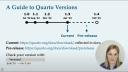
Before we jump in, let me give you a little context on Quarto versions. Quarto 1.0 was the version when Quarto was released last year. Quarto 1.1 and 1.2 were released before the end of the year and Quarto 1.3 was released in April this year, 2023. Quarto 1.3 is the current release, that means it's the one you'll find when you head to our downloads page on quarto.org and it's the version that the documentation describes.
We do release updates to the current release but those updates are somewhat infrequent. Some of the features I'll describe today are coming in Quarto 1.4 and if you want to try them out, you'll need to download what we call the pre-release. The pre-release is a snapshot of the main branch of Git repo and as such, it's updated really frequently. So, if you're going to sit down and do something with the pre-release, you want to make sure you grab the latest version from quarto.org.
New content features
The first feature I want to show you is the embed shortcode. Imagine you've got a Quarto document and you've imported some data, done some processing, done some exploration and you've landed at a visualization that you really want to include in another document. I'll call this document with all the code that gets to the visualization, the source document. What you want to end up with is another document, I'll call it the destination, with just this visualization in it.
The embed shortcode lets you do that with one line. Here's that source document and the code chunk that generates the visualization. We'll need a way to identify the cell, so let's add a label. I'll call it fig-scatter. Then in the destination document, I'll use the shortcode. The embed shortcode requires a path to the source file, followed by a cell identifier. That's it.
The cell options come from the source document, so if you want to add a caption, you'll need to do that in the source document. When rendered, the output from that source document will be included in the destination document. In HTML formats, you also get a link back to a rendered version of that source document. The embed shortcode was introduced in Quarto 1.3, but only when the source was a Jupyter notebook. In Quarto 1.4, you'll be able to do embeds from QMD documents too.
Cross-references in Quarto 1.4
Quarto 1.4 is bringing some big changes to cross-references. In particular, you'll be able to make almost anything a cross-referenceable element. All the current cross-reference syntax will still work, but Quarto 1.4 adds some new syntax that's more flexible.
To define a cross-referenceable element, you'll need to create a div with an ID that has a prefix that Quarto recognizes as a cross-reference. So for instance, here, the triple colons indicate the div, followed by an ID starting with fig, that lets Quarto know that this is a figure cross-reference. Then comes the content for this element, and then the final line will be interpreted as the caption. Then I can refer back to this element using the usual syntax, an at symbol followed by the ID of the element. When rendered, Quarto adds figure, along with a counter, and generates the text and link wherever I refer back to this element.
With this new syntax, I can put almost anything inside this div. I could put a code cell inside and call it a figure, or I could put an image inside, and by changing the prefix to tbl, call it a table.
The other new thing you'll be able to do is define custom types of cross-reference in your YAML. The keynames here are still a work in progress, but essentially, you decide what the prefix will be that will identify this as a cross-reference in the div ID, and the labels used in the caption, and for the in-text references. Here I'm defining one that will represent diagrams. Then you can switch to this new type of cross-reference, and now you have control over the text used to represent this reference. Each type of cross-reference maintains its own counter, so defining a new type of cross-reference also gives you a way to restart a counter.
Inline execution for Jupyter
This next feature is specific to the Jupyter engine, and it adds a feature that Nitar users have had for a long time, an easy way to get computed values inline. So for example, imagine you had a document with a Python code cell that defined the variable radius, and what you want in your output is a sentence that refers to the value in that variable. It used to be that you'd need a code cell, and inside that code cell, you would have to generate the markdown for that entire sentence, and then feed it into the markdown function.
Quarto 1.4 introduces a new syntax for inline execution, single backticks, followed by Python and curly braces, followed by the code to be executed. In this case, we're just grabbing the variable itself. Or if you happen to use the Julia Jupyter kernel, you could swap this out for a Julia example as well.
Adding context to code
The final content features I want to talk about are really useful if you tend to write about code, and you want to add additional context for your readers. For example, imagine seeing this code in a rendered document. It happens to be YAML, and it was produced with this markdown in its source. I think the first piece of context people need when they're looking at code is where this code is. In this case, this is code you'd find in the _quarto.yaml file in a Quarto project. You can add that by adding the filename attribute to the code cell, which adds a header to the code cell in the rendered output. Here, the code lives in an actual file, but the filename attribute doesn't have to be a filename. For instance, you might say, this code is written in the terminal, or this code is written on the R console.
The other feature for adding context to code is code annotation. Code annotation lets you add comments about specific lines of code. For HTML output, I really like the hover setting, where the annotation is only revealed on hover so that it doesn't distract from the code. Adding code annotation is a matter of adding specially formatted comments to the code itself, along with an ordered list directly following the code.
Project features
Because they involve many files, Quarto projects can sometimes be a little bit more complicated to get started. Create is a Quarto command introduced in 1.2 that makes it really easy to produce a minimal working project. Here I am on the terminal running quarto create. This then runs through an interactive prompt, where I can select I want to create a project of type website in the directory test-website. Quarto then creates that directory and populates it with a minimal working set of files.
This works in any terminal, but because I use the RStudio terminal, Quarto will create an RStudio project file and open up that project for me. Then I might build it just to see what I've got. I love using the interactive prompt, but you can also specify all those options as part of the command. This is a really handy way to build small reproducible examples of projects, or to get started with a project type that's new to you.
Project profiles
The other project feature I want to show you are what's called project profiles. Imagine you've got a project where you need variations of basically the same content, but for different audiences or different venues. So for example, maybe you want a version of a report to share with external stakeholders, and another version for internal use that has a little bit more detail.
Your project might start like this, a quarto file report.qmd, where I've just got a placeholder for some content that everyone might see. _quarto.yaml, with some project level information, like the project title, and a location for the rendered output to go, in this case a folder called external. So if I was to render this project, I'd get this report dot html in the folder external. This represents rendering without a profile activated.
To add a profile, you add another quarto configuration file, but with an extra suffix. I'm going to call mine _quarto-internal.yaml. To activate the profile, you can add the profile option to the render command. So here I'm running quarto render, with profile set to internal. When activated, the options in the profile configuration file are merged with those in the default configuration file. I'm going to add a different output directory to my internal profile. Let me say internal. Then, when I render with this profile activated, I get this report dot html in the internal folder.
Not very exciting yet, but I can use this profile to start making changes that distinguish the internal output from my default output. So just to visually make a distinction, I could add a theme to my internal profile. In addition to having a profile apply different options, you can also use it to control content. Let's take another look at report dot qmd. I'm going to add some content that I want only visible in the internal report. To have it show up only when the internal profile is activated, I can put it inside a div and add the content visible class with the when profile attribute set to internal.
Now if I render both with and without the internal profile activated, I get these two versions. Report dot html in the external folder has only one section, and report dot html in the internal folder has two.
Authoring tools: VS Code and JupyterLab
The biggest changes in authoring tools are to our extensions for Visual Studio Code and JupyterLab. The Visual Studio Code extension now has a visual editor, just like RStudio. When you enter the visual editor, you get a what-you-see-is-what-you-get editing experience for your Quarto documents. For example, rather than seeing markdown syntax, you see formatted text.
One of the nicest features of the visual editor is the insert anything tool. Simply type a forward slash, and you'll get a dropdown of all the content types you might insert. A nice example is insert table. And if you only need one reason to use the visual editor, it should be for editing tables without having to worry about markdown syntax.
And if you only need one reason to use the visual editor, it should be for editing tables without having to worry about markdown syntax.
Another nice feature in the Visual Studio Code extension is completion for citations and cross-references. Simply type the at symbol, and you'll see completions for cross-referenceable items like figures, tables, or sections, as well as citations from your bibliography file.
There is now also a JupyterLab Quarto extension. This extension interprets the Quarto markdown in your file, and gives you a more realistic preview of that document from within the editor.
What's coming and how to keep up
That's it for the new features I wanted to show you. There are a couple of other big features coming in Quarto 1.4 that I haven't talked about, because you can hear about them in other PositConf talks. That's manuscript projects for scholarly writing, and typist support as an alternative to LaTeX for PDF output.
You might be wondering how you can keep up with changes to Quarto. The most definitive list for the changes in each Quarto release is the changelog, and you can find that on the download page on quarto.org. You can also find them in the news folder on our GitHub repo. We also like to blog about some of the highlights of each release, so you might want to follow the Quarto blog as well. The best place to ask questions about new or old features is on the discussion board on our GitHub repo. And if there's something new in Quarto you'd like to see, there's a feature request category there too.
Thanks for listening, and I hope you've seen something that you're eager to try out.
Q&A
A fact question, when is Quarto 1.4 going to be released? Good question. The word is fall of this year, so we're already in fall. I would expect, we're still sort of doing some active development, there'll be a bit of a cooling off period after that. I would expect it before Christmas.
Charlotte, why is the syntax for inline code for Python and Julia slightly different than R? And somebody more knowledgeable than I will know exactly why, but as far as I know, it's sort of a limitation of the Jupyter engine. And I know it can be a little bit jarring, because if you're used to R, you're used to just the backtick and then a sort of bare letter R. The good news is that we're actually also including that new style syntax for R for the Knitter engine, so that, for instance, if you're teaching this, there's sort of only one syntax you'll need to teach. So starting in Quarto 1.4, you'll also be able to, in Knitter, say single backtick and then R in those curly braces, that same syntax will work for you.
Multicolumn documents, specifically multicolumn PDFs, is that possible in Quarto? Yeah, totally possible. That's possible now. It is one of the areas where our documentation is perhaps a little bit hard to find, but you want to hunt around on the website for the layout attribute. Most of our examples show that with HTML, so it's really easy to sort of put elements in columns with that, but that also works in PDF. That will, that's generally something you might do on an element kind of basis, like you've got a couple of figures in a table that you want to lay out in multiple columns. You can also, of course, use any of the LaTeX or, coming soon, typist ways of doing that at a document level.
So the big things, obviously, are Python and also observable.js, but anything that has a Jupyter kernel, any language that has a Jupyter kernel, you can use. So I'll leave it up to you if your favorite language, you've got to identify if your favorite language has a Jupyter kernel, and if it does, you can use Quarto.
So doing sort of a bit of an outlook as my last question, what are new features that you would like to develop in the next year or two for Quarto? And I mostly am working on the documentation side of things and getting people on board to Quarto side of things. So most of the things I want to do aren't necessarily building new features in Quarto, but making sure people can find the features they're looking for and that we're helping on board people onto Quarto. I personally think we could do some pretty big improvements to our quarto.org website. So let me know if you've also got ideas about that. I think that's something that you'll see coming soon.

