


RStudio IDE | Background and Posit Workbench Jobs
This is a great feature for any long running scripts you may have, including, for example, a machine learning training step. It also allows you to run multiple jobs simultaneously. Now the main difference between background jobs and workbench jobs is that background jobs run as a child process within the same session. And workbench jobs run as a new session, either on the local server, or off host if you're running in a multi server or clustered environment
image: thumbnail.jpg
Transcript#
This transcript was generated automatically and may contain errors.
Now at their core, background and workbench jobs are very similar in that they allow you to run scripts in a separate session. This is a great feature for any long running scripts you may have, including for example a machine learning training set. It also allows you to run multiple jobs simultaneously.
Now the main difference between background jobs and workbench jobs is that background jobs run as a child process within the same session and workbench jobs run as a new session either on the local server or off host if you're running in a multi-server or clustered environment.
Now the main difference between background jobs and workbench jobs is that background jobs run as a child process within the same session and workbench jobs run as a new session either on the local server or off host if you're running in a multi-server or clustered environment.
Running a background job in RStudio
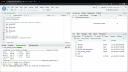
So to demonstrate these two jobs I'm going to first open up the currently running RStudio session you see right here on Posit Workbench. And in the top left corner you'll see an R script called long running script. In this script I'm first loading some R packages so we're loading the tidyverse and then I create three variables x y and z and I assign them the numeric values 1 2 and 3.
Now I did this on purpose so we can see how environment variables work within background and workbench jobs. Each variable assignment is also separated by a call to the sys sleep function which simply counts to 10 to replicate a long running analysis. Then I also have some code here at the bottom which will write the MT cars data set as an RDS file to my current working directory.
So let's first run this as a background job which will again run as a child R process in the same RStudio session. To do this I'll select the background jobs right here and we'll select start background job.
So I next ensure that the long running script is selected so you can select browse and I'll select that long running script exactly what you see over here. And then I can choose the working directory and I'll just leave it as this current working directory.
Next you'll see the environment option. Now if I click this box then anything I currently have in my global environment which you can see over here is empty would be made available to the long running script. And finally we get to dictate what happens to the results of the long running script.
So if for example we want to access those three variables recreated x y and z and we want to x y and z then we'll need to select to global environment. We also have the option to not copy the results or copy them as a separate results object. So let's select to global environment and start this job. While it's running we'll get some updates here in the background jobs tab.
Now if I try to close this RStudio session we're going to get a warning here saying that essentially this will terminate that background job if I close this session. So we don't want to do that. We'll hit cancel and while this is running you can still see I have access to my console here to write some R code. So let's just give this a few more seconds to finish up.
And there we go. We can see the three variables we have copied to our global environment x y and z and the MT cars data set is now in my working directory.
Running a workbench job
Now let's demonstrate workbench jobs which will again run in a separate R session again either on my local server or off host depending on how you have workbench configured. So let me first delete the MT cars data set right here and I'm going to restart my R session.
So let's first click on workbench jobs and we'll select start workbench job and you can see I've been playing around with a few options here. So I'll select start workbench job and we get the same two options. We want to select the R script we want to run so I'll go to long running script and we'll select my working directory and we'll do the same directory that script lives within.
And then you'll also see up here workbench job options. This allows you to choose things like how much CPU you want to allocate to this job how much memory and also depending on how workbench is configured you can also create customized docker images to deploy this job within. So once you're happy with the setup we can go ahead and start this job.
Now because it's running in a separate R session we could actually close out of this RStudio session. And if we do that you can see in the top right corner you can actually see the long running script is running as a workbench job.
So let's actually open up that same RStudio session we were just in. So we'll click into it here and if we go back to workbench jobs you can see it's almost done running it's finally succeeded. If I refresh my working directory we can now see the mtcars data set is now in my directory.
Running workbench jobs from VS Code
Now finally it's worth noting that you can also run workbench jobs from within VS Code on Posit Workbench 2. So if I go back to the Posit Workbench home page you can see I have this VS Code session opened up so I can click on this. And here we had that same long running R script we showed before and on the left hand side you'll see workbench jobs. And so if you wanted to submit a workbench job through VS Code we just have to click this little plus icon. And just like before you'd select your script working directory and you can start this job. And hopefully this was a helpful overview of both background jobs and workbench jobs within Posit Workbench.
