
Kolbi Parrish & Andy Pham | R Markdown + RStudio Connect + R Shiny | Posit (2022)
R is more than just a tool for data analysis– it can help streamline and automate processes, including managing and monitoring data pipelines. This presentation highlights how R Markdown, RStudio Connect, and R Shiny can be utilized to automate data processing, error logging, and process monitoring. By the end of the presentation, attendees will better understand: (1) how RStudio Connect paired with R Markdown can be used to automate data processing, (2) that packages such as blastula and loggit can be used within R Markdown documents scheduled on RStudio Connect to email users when an error is encountered during data processing and log those errors, and (3) that the resulting logs can be fed to a Shiny app to enhance process monitoring. Session: Generating high quality data
image: thumbnail.jpg
Transcript#
This transcript was generated automatically and may contain errors.
Welcome to our talk on R Markdown, RStudio Connect, and R Shiny. We're going to serve you a three-course meal today on how we automated our data processing, error logging, and alerts.
So it's time to meet the chefs. My name is Kolbi Parrish, and I'm an informatics specialist at the California Department of Public Health. I'm working there through UCSF. Hi, my name is Andy Pham. I'm also working at the California Department of Public Health, also for UCSF.
Background and motivation
So this talk was inspired by a real-life event. It was early 2020, and Andy and I were working at the California Department of Public Health within a small informatics section. And shortly after that, the COVID-19 response began. And our small section was picked up and put onto COVID-19 response, where we remain today. One of our main charges was to prop up data pipelines and products to help inform the response efforts.
And automation was a strategy our team utilized early on to help us be able to maintain the scripts that we were responsible for while continuing to develop based on the emerging needs. But as the number of scripts that we were responsible for grew and grew and grew, sometimes at some months it felt like they doubled or tripled, we quickly realized that automation alone wasn't enough to remain responsive should anything go wrong.
So a group of us got together and started tossing around ideas on how we could implement additional strategies to be responsive quickly should anything go wrong with any of our scripts. And some of the strategies that we came up with were automated data processing, logging, and alerts, as well as a process monitoring app.
So today, that three-course meal that we're going to serve you starts with an appetizer of how we automated our data processing, followed by a main course on error alerts and logging. And for those Shiny lovers, we're going to give you a taste of Shiny in the form of a process monitoring app at the end.
Automating data processing with RStudio Connect
So the way that we automated our data processing was through a combination of R Markdown and RStudio Connect. We chose the import from Git option that's available on RStudio Connect. And I'll tell you a little bit about why we chose that option, but it was really easy to use because we store our code in Git repositories.
But one of the things that we really liked about this import from Git option was that it not only helped us automate our scripts, but it helped us automate our pipelines. And that's because with the check of a button, we were able to say any time we make a change to our Git repository, have that code change autoflow to that published content.
Error alerts and logging
So great. Now we have automation. But imagine one of those many automated scripts results in an error. How are you going to see what error occurred and where? Doing that can kind of be like finding a single noodle in a giant bowl of messy spaghetti. Just a little bit frustrating.
But error alerts and logging are there to help. The way that we implemented that was through a combination of R Markdown, blastula, Logit, and RStudio Connect. So the process was really similar for us to the way that we automated our data processing, except we added in a few additional layers. And those layers were logging, email alert logic, and an error report template. And for us, that was in the form of an R Markdown document, which added some structure to those email alerts.
So we started by calling the Logit package, and we chose the Logit package because it made it really easy to create custom error messages, as well as add in additional custom fields to the log messages. And then we set up our log path, and this helped specify where we wanted the resulting log files to be written to.
And then we had to strategically place the Logit function calls throughout our script. And what we did is we put a Logit call at the start of each R Markdown chunk upon error, and we used the try catch function to do this. I'll show you an example in just a moment. And then at the end of each R Markdown chunk. It was really important for us to, within R Markdown scripts, to name each chunk with a unique name, because we then pass that information back to the log.
So this is an example of a Logit call upon error, using the try catch function. And you see in the event of an error, we are calling Logit. It was pretty easy to use. This specific example is an error message type, so that's that first parameter there. And then the next is a custom error message that we created using a paste function, so we essentially can put any text that we want and then pass that error message to that paste function.
And then the other fields that were custom that we found really helpful to help us pinpoint exactly where any issues were occurring was the script name, the chunk name, so the section of code within a specific script. And then we also like to log attempt numbers, because sometimes there are chunks of code that we'll retry in the event of an error. And then version was another field that we like to log, because it helped us determine if the error occurred in a production or a development pipeline.
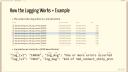
So the resulting log file looks a little something like this. You can see that we chose to output a log file by day. And that was helpful, because we have a lot of scripts, and they're running on a regular basis, and we have a lot of log entries, so this helped us be able to quickly just kind of organize things by day.
If you were to open up that file, it would look a little something like this. It is a JSON-based format, so it does need to be parsed, and Andy's going to cover how we did that later on in the talk. But you'll notice that the fields that are logged are similar to what you saw in that log at function call. So that first one there is an error message, and it's a log level type of error. You could also log things like informational messages or warnings as well. And then the next field there is a custom error message, and if we were to look at the rest of the log file, we'd find those additional custom fields like script name, chunk name, and version.
And so that highlighted code there shows the section of code that will actually render the email using a specified error report template, that's the error underscore report.RMD, I'll show you what that looks like in the next slide. And once that's rendered, then blastula then blasts it out to the viewers and collaborators that you specify when you set up the automation.
So this is a screenshot of the R markdown error report template that we use. We like to keep it really simple and just include the information that we find helpful to pinpoint exactly where any issues occurred, so that includes version, again, for us that means development versus production, the script name, the chunk name, so exactly where that error occurred within a script, the error itself, and then we also like to include a path to the full log file just in case we want to look at the history there.
So putting this all together, how this works is we have our script published on RStudio Connect and it's on the schedule and it's running on a regular basis, we have our logging integrated into the script, we have that error logic integrated, in the event of an error, blastula will send out an email to the specified viewers and collaborators, that error email follows the template that I showed you earlier and looks a little something like this. This is just a dummy error email that we set up, but you see here the version is our dev pipeline, you see the script name, the chunk name, the error itself, and then we also have a spot for the log path there.
So now that we have our log set up and our logging is happening, I'm going to cover a little bit about how we implemented error alerts, and it was relatively easy to do by just adding a little extra code at the end of each R markdown chunk outside of the try catch function, and in the event of an error, we essentially used blastula to send out an email.
Process monitoring app
So I'm going to turn the floor over to Andy to cover how we took those log files that were in JSON-based format and turned them into something a little more digestible. All right. Thank you, Colby. So now you have your automated processes set up and you have your email alerts for error logging. Now let's say we get an email saying that there's an error. The next step is to troubleshoot, right?
However, errors rarely occur in isolation. In order to fix an error efficiently and to prevent it from occurring again in future states, you want to be able to find if this error is occurring in your development and production environment, has this error occurred multiple times throughout your processes?
And so before the process monitoring app, what we would have to do is we have to go through the error and process logs. And as Colby mentioned before, these are in JSON format. And there's probably hundreds to thousands of lines of this. So you'd be pretty much abusing your Control-F to try to find what errors occurred and where it occurred. And that's also not to mention that since we're logging almost every day, we'd have to go through all these files to see if there's some kind of historic pattern coming on from these errors.
And so going through all this, I would equate it to sort of trying to eat a melting ice cream sundae. Everything's mixed together, different ice cream flavors are mixing, and you're tasting like two, three different flavors, and you're not sure if you like it or not. It's very interesting. However, our approach was to season in some R magic and make a more beautiful ice cream sundae where all the components are easily seeable and you can get to where you need to be quickly and efficiently.
And so we did this with this was our process for our process monitoring app. We took a bunch of messy logs, applied some Logit, R Shiny, Plotly, data tables, any R visualization packages, and turned it into a dashboard where we can view both how our processes were doing and the errors we got within one single dashboard.
However, we first needed to be able to read all of these logs into something that was R-readable. Fortunately for us, Logit provides this function already. There's a function called read underscore logs where if you pass the path of your error file, it'll read in that error file and return an R data table that's easily filtered. So now we could filter based on if we wanted to find an error and then by which specific process and then within a specific time frame.
So this was very useful for putting up the dashboard initially. And so we fed this data into a data table call and built error data tables where we could view all of our error data errors in relation to each other, when they occurred, and if they occurred within any other processes. We additionally fed our process logs into another data table. And because we had set up our Logit calls within each R Markdown chunk, we can now see how long each R Markdown chunk took within the process and be able to identify any bottlenecks as needed.
What we also did was we also fed some of the process log data into Plotly. And so we created this graph where we could usually be able to see how our processes were doing in relation to each other and in relation to our development and production environments. We could also see if any processes were running much, much longer than we expected so that we can get in there and fix it before anything broke.
And so we took all of these different pieces, the error data tables, the graphs, and we used R Shiny to put it all into a dashboard. And so now we could get where we needed to be really quickly and be able to see both of our development and production errors and processes in one setting.
And so the outcome of this is that we had all of our error viewing, troubleshooting, and process monitoring in one place, and we could get to where we needed to be quickly. In addition, because of R Shiny's user-friendly interface, we could have new users on our team be able to dive into being able to fix our errors without having to know the intricacies of our monitoring system because we already had an interface built over that layer. And so new hires to our team could also start contributing to this process monitoring app, again, without having to know too much or spend too much time learning about how our error logging system works.
In addition, because of R Shiny's user-friendly interface, we could have new users on our team be able to dive into being able to fix our errors without having to know the intricacies of our monitoring system because we already had an interface built over that layer.
And so errors happen. We're all human. We hope these tools and recipe that we have made available to you today help you be able to create a full three-course error-friendly meal that's easily digestible and worthy of praise. Thank you.