


proxied auth example
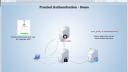
Overview view of proxied authentication with RStudio's professional products. Specific example of setting up Shiny Server Pro to use oauth2_proxy and Github OAuth provider
image: thumbnail.jpg
Transcript#
This transcript was generated automatically and may contain errors.
All of RStudio's professional products support proxied authentication. Today we'll look at an example specifically for Shiny Server Pro, but the process is similar for both RStudio Connect and RStudio Server Pro as well.
Regular authentication workflow
Before looking at proxied authentication, it's important to understand the regular authentication workflow. The first step is that a user will request a piece of content. If that content is restricted or requires authentication, Shiny Server Pro will respond to the client asking for the user's credentials, typically a username and password.
Once the credentials are received, Shiny Server Pro will check to make sure that the credentials are in fact correct, and it'll do so by looking against either a flat file database or one of the authentication services specified in the Shiny Server Pro configuration file, for example, the authldap directive or the authad directive.
If the username and password supplied by the user matches up with those on file, Shiny Server Pro will then proceed to check whether or not the user has access to a specific piece of content specified in the Shiny Server Pro configuration file as the required user or required group directive. If indeed the user has access, Shiny Server Pro will serve the content and note that the username is available to the application developer in the session$user object.
Again, there are two primary steps. The first is the user proving that they are who they say they are, and the second is determining which content the user has access to and then serving that content.
Proxied authentication workflow
In proxied authentication, we have the same workflow, but steps two and step three are outsourced to a proxy server. Specifically, a user will request a piece of Shiny content, and that request will be routed through the proxy server. The proxy server will then communicate with the user to ID who they are and to confirm that they are who they say they are, and this process, if they're already logged in, can be done via single sign-on without direct involvement from the user.
Once the proxy server has authenticated the user, it'll pass the user information to Shiny Server Pro through a secure HTTP header that contains a key-value pair. The key can be specified inside of the Shiny Server Pro configuration file. Shiny Server Pro will then accept that the user is who the proxy server has identified them to be.
A note of caution, be sure Shiny Server will only accept incoming requests from the proxy, because Shiny Server Pro accepts these requests as truth. If a user were to sign their own HTTP header, Shiny Server Pro would trust them as well. So all requests should go to Shiny Server Pro through the proxy.
If a user were to sign their own HTTP header, Shiny Server Pro would trust them as well. So all requests should go to Shiny Server Pro through the proxy.
Then Shiny Server Pro, after receiving the authenticated username, proceeds as before by checking whether the user has access to a specific piece of content, and if they do, serving that content.
OAuth 2 Proxy with GitHub
Typically, the proxy server can come in a variety of different forms. Today, we'll look at a specific example using a tool called OAuth 2 Proxy, which is an open-source piece of software that allows the user to communicate with a variety of OAuth 2 providers, specifically, in this case, GitHub.
If you are interested in the details, please take a look at the Bitly GitHub page for OAuth 2 Proxy. It describes the steps necessary to set up this particular proxy server, as well as the OAuth 2 endpoints. And specifically, today, we'll be using GitHub as our OAuth 2 provider. Inside of GitHub, under Settings, you can specify an OAuth application, which is what we've done here.
Live demo
So I'm going to go and request a piece of content from Shiny Server. Right now, I'm running Shiny Server Pro, and the proxy, both on localhost. The proxy is listening on port 80. Shiny Server Pro is listening on port 3838. So I'm going to go through the proxy by requesting the Shiny Server Pro content just at port 80 or localhost.
You'll see that the proxy, OAuth 2 Proxy, is asking me to sign in with my GitHub account. So I'll proceed to do so.
And after signing in, the GitHub has authenticated me, passed that authentication back to the OAuth 2 proxy server, which has then forwarded my username to Shiny Server Pro. You can see that Shiny Server Pro is now aware of who I am, logged in as Sean.
If I were to do this again, so to open up a new window, and to, again, request Shiny Server Pro via the proxy server, you'll see that this time I am directed directly to Shiny Server because the browser has cached the authentication cookie. So it knows who I am, and therefore, single sign-on is achieved because I don't have to directly involve myself in the authentication process. We still walk through the proxy server, communicating with the GitHub client, and then passing along the HTTP header to Shiny Server Pro. But all of that is done on my behalf by the browser.
Hopefully, this gives you a good starting point for setting up your own proxied server and successfully authenticating users. Thank you.
